
ASRock IPMI per Virtual Drive eine ISO Laden
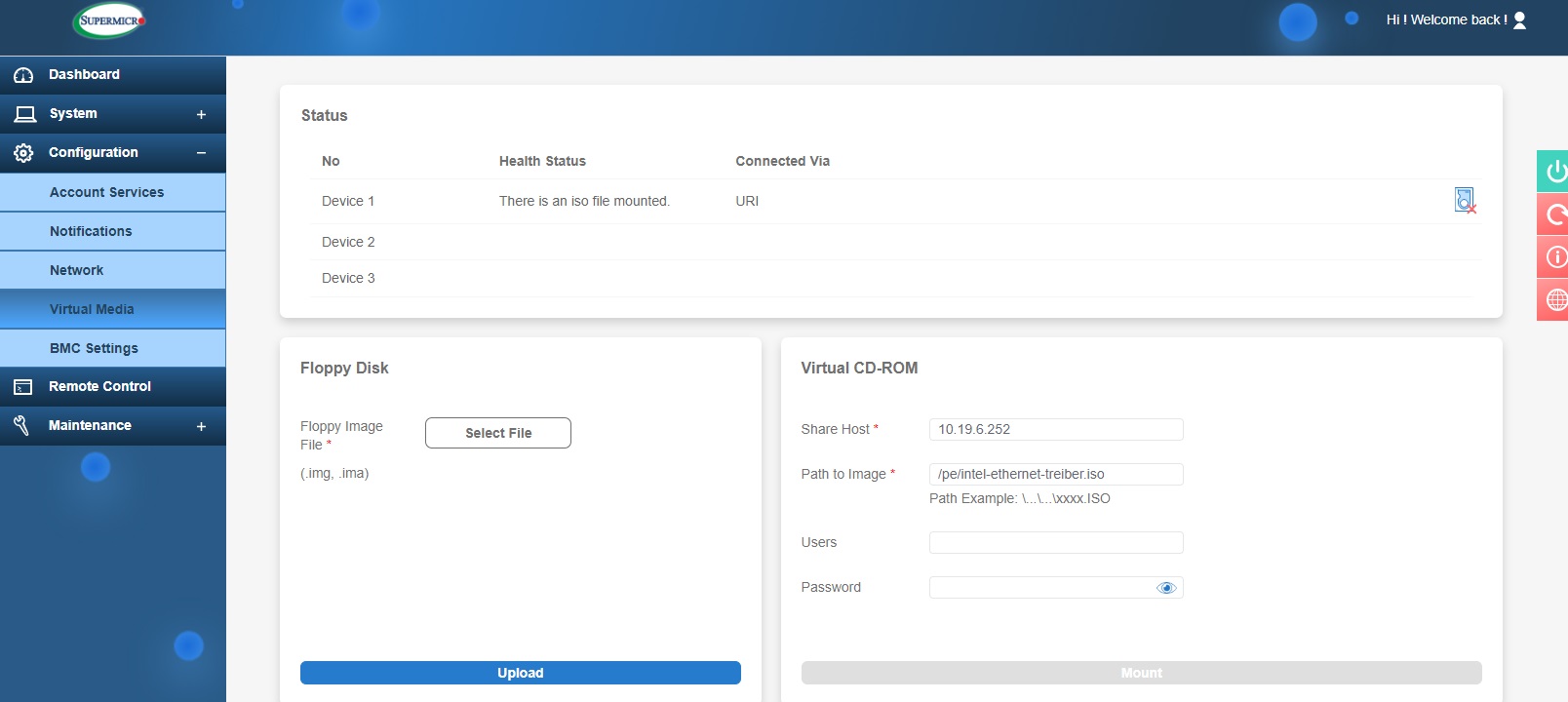
Um eine ISO im Supermicro IPMIASRockIPMI zu laden, nutzen wir virtual Drive. Hier kann man ein CD-ROM Image bzw eine ISO laden.
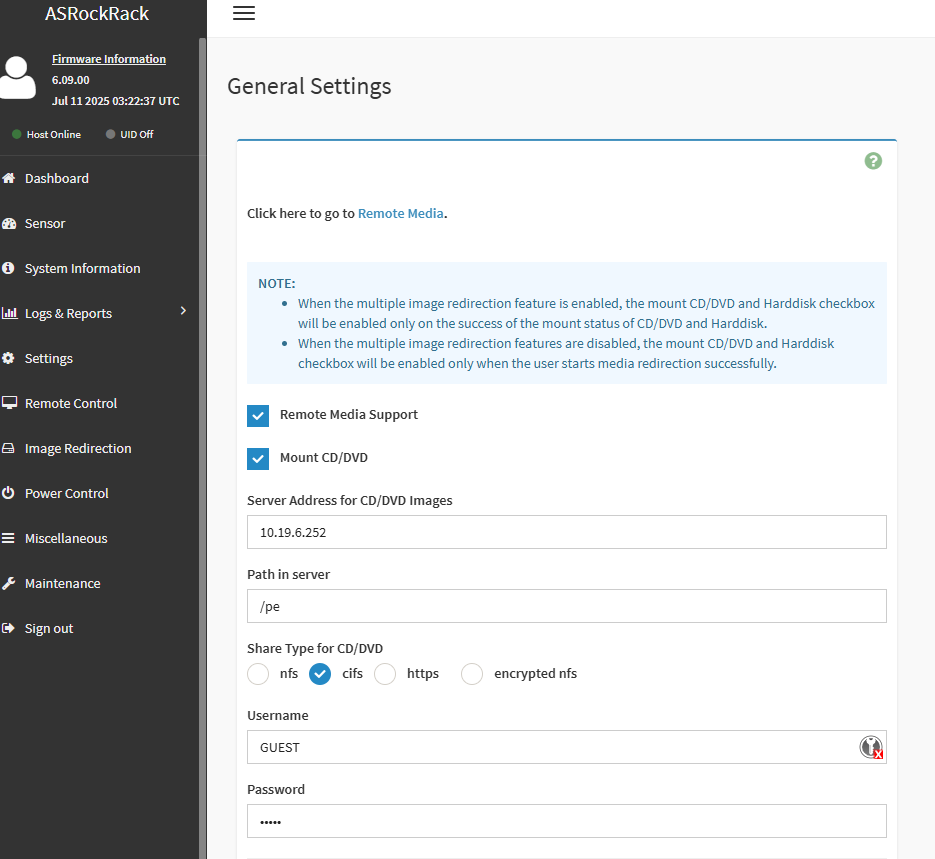
- Hier muss man zuerst die Share Host IP eintragen und den Pfad mit der
ISOISO. Als Username und Passwort GUEST - Dann auf "Save" klicken
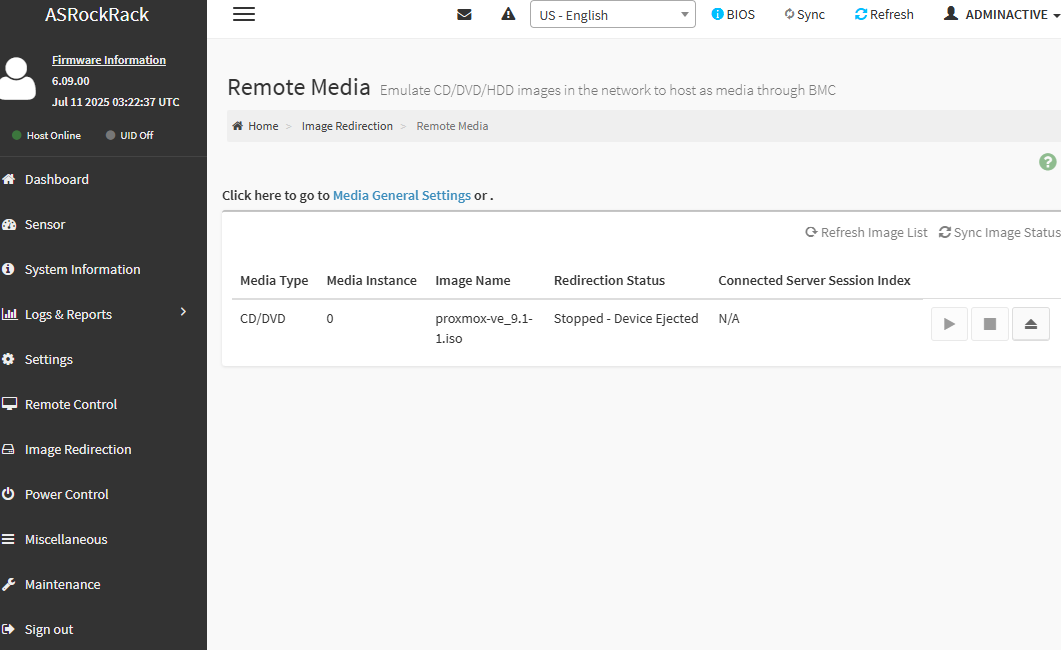
- Dann bei "Image Redirection" eine ISO auswählen und auf
"Mount"Playklickendrücken.
Ob die Iso dann erfolgreich eingelegt ist, sieht man oben bei "Device 1 - There is an iso file mounted". Falls dies dort nicht steht, ist die ISO defekt, inkompatibel oder IP und Pfad sind falsch.
Sofern Sie von der ISO aus booten möchten, z.B. für eine Installation:
- Einen neuen Tab öffnen und auf https://root-control.de/server/view_rescue gehen.
- Hier bei dem Server auf virtualreset klicken. Der Server startet dann vom virtuellen CD Laufwerk mit der ISO.
Alternative: Öffnen Sie die IPMI Konsole (HTML5) und starten die den Server neu. Klicken Sie F11 um das Boot Menü zu laden, wählen Sie dort "UEFI virtuel CDROM" aus, damit von der ISO gestartet werden kann.
Zugangsdaten zu unserem ISO Speicher:
Host (CIFS): 10.19.6.252
User: GUEST
Pass: GUEST
Aktuelle Versionen:
Path: /pe/proxmox-ve_8.3-1.iso
Path: /pe/proxmox-ve_9.1-1.iso
Path: /pe/VMware-VMvisor-Installer-7.0.0.update03-22348816.x86_64-Dell_Customized-A19.iso
Path: /pe/VMware-VMvisor-Installer-8.0U2b-23305546.x86_64.iso
Path: /pe/Win10_22H2_German_x64.iso
Path: /pe/Win10_22H2_EnglishInternational_x64v1.iso
Path: /pe/Win2016_64bit_DE.iso
Path: /pe/Win2019_64bit_DE.iso
Path: /pe/Windows_2022_eng.iso
Path: /pe/Windows_2022_ger.iso
Path: /pe/win2k25_en_26100.1742.240906-0331.iso
Path: /pe/win2k25_ger_26100.1742.240906-0331.iso
Path: /pe/ubuntu-20.04.6-live-server-amd64.iso
Path: /pe/ubuntu_22.04_live_server_amd64.iso
Path: /pe/ubuntu-24.04.1-live-server-amd64.iso
Path: /pe/systemrescue-12.01-amd64.iso
Path: /pe/debian-12.6.0-amd64-netinst.iso
Path: /pe/debian-12.7.0-amd64-netinst.iso
Path: /pe/CentOS-Stream-9-20240729.0-x86_64-boot.iso
Path: /pe/archlinux-2024.04.01-x86_64.iso
Path: /pe/AlmaLinux-8.10-x86_64-boot.iso
Path: /pe/AlmaLinux-9.4-x86_64-boot.iso
Path: /pe/AlmaLinux-9.7-x86_64-boot.iso
Path: /pe/AlmaLinux-10.1-x86_64-boot.iso
Path: /pe/AlmaLinux-10.1-x86_64_v2-boot.iso
Path: /pe/FreeBSD_12.2_RELEASE_amd64_disc1.iso
Path: /pe/FreeBSD-13.2-RELEASE-amd64-disc1.iso
Path: /pe/Rocky_8.5_x86_64_minimal.iso
Path: /pe/Rocky-9.2-x86_64-minimal.iso
Path: /pe/Rocky-10.1-x86_64-boot.iso
Windows LAN Treiber:
Path: /pe/intel_ethernet_treiber.iso
Path: /pe/CDR_NIC_1.70_for_Add_on_NIC_Cards.iso
Vmware issue: Press SHIFT+O and append the following kernel option cpuUniformityHardCheckPanic=FALSE to the command line and the press enter to continue the boot process.